Table of contents
- Overview
- Achieve Global eLearning Scale: Automate Localization in Under an Hour with Doctor eLearning
- What You’ll Need to Automate eLearning Localization with Doctor eLearning
- Troubleshooting Doctor eLearning Localization Automation: Common Issues & Fixes
- Advanced eLearning Localization Automation with Doctor eLearning : Next Steps for Global Scale
- FAQ
- Conclusion
Overview
In today’s globalized world, delivering effective training across diverse linguistic and cultural landscapes is no longer a luxury—it’s a necessity. For Learning & Development (L&D) teams, instructional designers, and LMS administrators, the challenge of localizing eLearning content, especially SCORM-based courses, can be daunting. Traditional methods often involve complex workflows, reliance on original source files, and significant time investments. But what if you could streamline this entire process, achieving true localization automation without the usual headaches?
This comprehensive guide will walk you through exactly how to leverage Doctor eLearning to automate your eLearning localization efforts in 2026. We’ll focus on its unique ability to modify published courses directly, its powerful AI-assisted translation, and its robust SCORM compression technology. Say goodbye to the endless chase for source files and hello to efficient, scalable global training.
Achieve Global eLearning Scale: Automate Localization in Under an Hour with Doctor eLearning
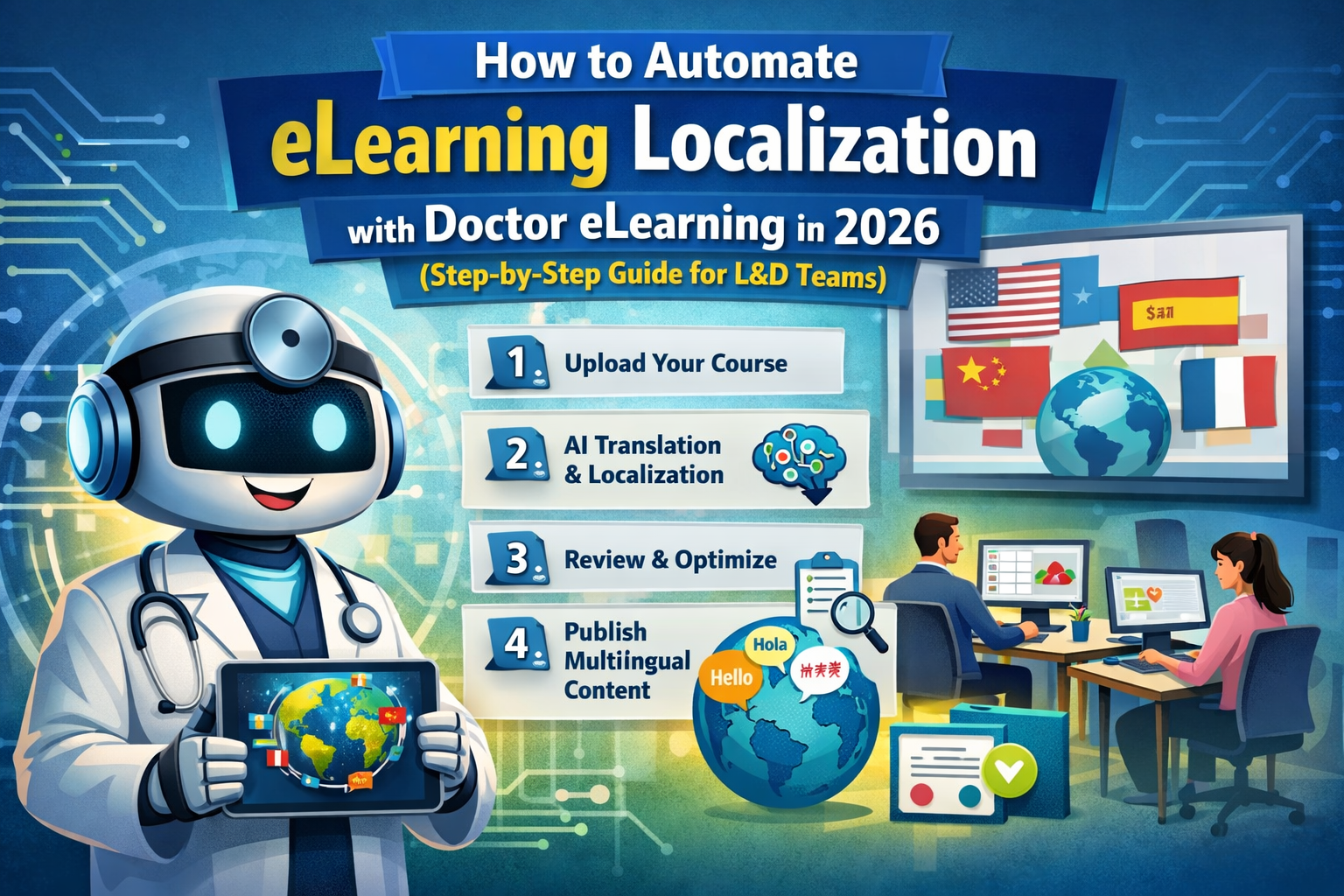
By the end of this guide, you’ll know exactly how to achieve efficient eLearning localization automation using Doctor eLearning — even if you’ve never done it before. We’ll cover every step, every tool, and every common mistake to avoid. This guide focuses on the unique challenges of SCORM-based content and how Doctor eLearning’s direct course modification and AI-assisted translation capabilities offer a distinct advantage over generic localization automation tools that often require source files or complex workflow integrations.
What You’ll Need to Automate eLearning Localization with Doctor eLearning
To embark on your journey to seamless eLearning localization automation, gather the following:
- A Doctor eLearning Account: Whether it’s a trial or a paid subscription, you’ll need access to the platform.
- Your Published SCORM Course(s): Crucially, you only need the published SCORM package. Original authoring tool source files are NOT required. This is a game-changer, eliminating a major bottleneck for L&D teams who often inherit courses without their original project files.
- Knowledge of Your Target Languages: While Doctor eLearning provides AI-assisted translation, having an understanding of the target languages (or access to subject matter experts/reviewers) will ensure the highest quality output.
- An Internet Connection: For accessing the cloud-based Doctor eLearning platform.
This distinction—the ability to work directly with published SCORM files—sets Doctor eLearning apart from typical localization workflows that demand access to proprietary authoring tool files, saving countless hours and resources.
1. Upload Your Published SCORM Course to Doctor eLearning
What to Do:
Log into your Doctor eLearning account. Navigate to the upload section and select your existing, published SCORM course package (typically a .zip file). The platform is designed for intuitive drag-and-drop functionality or a simple file browser upload.
Why It Matters:
This is where Doctor eLearning truly shines and differentiates itself from nearly every other localization solution on the market. Unlike generic translation management systems or traditional localization workflows that demand original authoring files (e.g., Storyline, Captivate, Rise project files), Doctor eLearning works directly with your compiled SCORM output. This means you can localize courses even if the original instructional designer has left, the authoring tool license has expired, or the source files are simply lost. It’s a massive time-saver and eliminates a common dependency that cripples global training initiatives.
Most Common Mistake:
Trying to upload non-SCORM content (e.g., a raw PDF, a video file, or an incomplete SCORM package). Doctor eLearning is specifically optimized for SCORM, AICC, and xAPI packages. Ensure your file is a complete, valid SCORM .zip file. Another mistake is uploading a course that hasn’t been properly published from its authoring tool, which can lead to missing assets or broken functionality.
Comparative Advantage: While articles often discuss “localization workflow automation,” they frequently assume the first step is content extraction from source files. Doctor eLearning bypasses this entirely, allowing you to jump straight to translation and editing with your existing, deployed content.
2. Select Target Languages and Initiate AI-Assisted Translation
What to Do:
Once your SCORM course is uploaded and processed by Doctor eLearning, you’ll be presented with options to manage it. Select the course, then choose your desired target languages from a comprehensive list. With a few clicks, you can initiate the AI-assisted translation feature. Doctor eLearning will then process your course, extracting all translatable text and generating initial localized content for each selected language.
Why It Matters:
This step dramatically speeds up the initial translation phase. Leveraging advanced AI, Doctor eLearning provides a high-quality first pass at translation, saving your team countless hours compared to manual translation or even traditional translation memory workflows. It’s particularly efficient for large volumes of content or for quickly deploying courses in many languages. The platform also supports XLIFF (XML Localization Interchange File Format), which ensures that the structure, formatting, and interactivity of your course are preserved during the translation process, making subsequent review and editing much smoother.
Most Common Mistake:
Not planning for review. While AI translation is powerful, it’s not always perfect, especially for highly technical, industry-specific jargon, or culturally sensitive phrases. Relying solely on the AI output without human review can lead to inaccuracies or awkward phrasing that undermines the learning experience. Always budget time for a human review in the next step.
Comparative Advantage: Many general localization automation tools offer AI translation, but Doctor eLearning’s integration with XLIFF and its understanding of eLearning content types (like text embedded in slides, quizzes, and navigation) ensures a more structured and accurate initial translation specifically for SCORM courses, reducing post-translation cleanup.
3. Review and Refine Translated Content Directly Within the Course
What to Do:
This is where Doctor eLearning truly empowers L&D teams. After the AI-assisted translation, you can access an in-platform editor that allows you to review and make direct edits to the translated text. You’ll see the content in its original course context, enabling you to ensure accuracy, correct any AI misinterpretations, and refine the language for cultural appropriateness and clarity. This includes text on slides, buttons, menus, quizzes, and feedback.
Why It Matters:
The ability to edit directly within the published course environment is a monumental advantage. It preserves the original course structure, formatting, and interactivity, eliminating the need for re-authoring or complex re-integration into an authoring tool. This direct modification capability drastically reduces the risk of introducing errors during content transfer and ensures that the localized version functions identically to the original. It’s about maintaining fidelity while achieving localization.
Most Common Mistake:
Overlooking visual elements that might contain embedded text needing translation. While Doctor eLearning excels at text extraction, some images or graphics might have text burned into them. These require a different approach (covered in Step 4). Another common error is not having a native speaker or subject matter expert review the content, leading to technically correct translations but a lack of nuance or industry-specific terminology.
Comparative Advantage: General translation software typically provides text strings in a spreadsheet or separate interface, divorcing the content from its visual context. Doctor eLearning’s direct in-course editing capability is a unique selling proposition, allowing for contextual review and modification that is impossible with most other tools, especially when working with published SCORM files.
4. Update Localized Media (Images, Audio, Video) for Cultural Relevance
What to Do:
If your course contains images, audio, or videos with text overlays, spoken dialogue, or culturally specific visuals, Doctor eLearning provides tools to update these directly. You can replace images with localized versions, upload new audio tracks for voiceovers, or swap out videos for translated or culturally appropriate alternatives. The platform allows you to manage these media assets within the context of the course, ensuring seamless integration.
Why It Matters:
True localization goes beyond mere translation; it’s about cultural adaptation. An image depicting a specific cultural context might not resonate or could even be inappropriate in another. Similarly, audio and video content often require localized voiceovers or subtitles. Doctor eLearning’s ability to modify these media elements directly within the published course ensures that your localized training is not just translated, but truly localized and culturally appropriate, enhancing learner engagement and comprehension globally.
Most Common Mistake:
Forgetting to replace embedded media that might not translate well or could cause cultural insensitivity. This is a common oversight when focusing solely on text. For example, a stock photo of a handshake might be perfectly acceptable in one culture but carry different connotations in another. Always conduct a thorough visual and auditory review of the localized course. Another mistake is uploading media in incompatible formats; ensure your replacement media adheres to common web standards (e.g., MP3 for audio, MP4 for video, JPG/PNG for images).
Comparative Advantage: Many localization tools handle text well, but direct media replacement within a published eLearning course is a specialized capability. Doctor eLearning’s integrated media editing tools eliminate the need to go back to the original authoring tool, re-export, and then re-upload, saving significant time and preventing version control issues.
5. Compress and Export Your Localized SCORM Package
What to Do:
Once you are completely satisfied with the localized content, including all text and media, it’s time to finalize your course. Doctor eLearning offers powerful SCORM compression technology. Before exporting, select the compression option to significantly reduce the file size of your new SCORM package. Then, initiate the export process to download your fully localized and optimized course.
Why It Matters:
Smaller file sizes are critical for several reasons, especially in global training programs. They mean faster loading times for learners, reduced bandwidth consumption (important for learners with slower internet connections), and smoother compatibility with Learning Management Systems (LMSs). Large SCORM files can strain LMS resources, lead to slow performance, or even fail to upload. Doctor eLearning’s compression ensures your localized courses are lean, efficient, and ready for global deployment without compromising quality or functionality.
Most Common Mistake:
Skipping the compression step. While the course might function, neglecting compression can lead to unnecessarily large files that strain LMS systems, frustrate learners with long load times, and consume excessive storage. Another mistake is not testing the compressed package before full deployment, though Doctor eLearning’s compression is designed to maintain integrity.
Comparative Advantage: Many localization workflows require external tools for SCORM compression, adding another layer of complexity and potential compatibility issues. Doctor eLearning’s built-in compression technology provides an all-in-one solution, streamlining the final output process and ensuring LMS readiness directly from the platform.
6. Integrate Localized Courses into Your Learning Management System (LMS)
What to Do:
With your newly compressed and localized SCORM package downloaded, the final step is to upload it to your Learning Management System (LMS). The process will vary slightly depending on your specific LMS (e.g., Moodle, Cornerstone, Workday, Canvas, etc.), but generally involves navigating to the course management section and using the “upload SCORM package” or “add new course” functionality.
Why It Matters:
This step makes your translated content accessible to your global learners. By successfully integrating the localized course, you complete the automation loop, delivering tailored training experiences that resonate with diverse audiences worldwide. Doctor eLearning’s focus on maintaining SCORM compatibility throughout the editing and compression process ensures a smooth upload and playback experience in virtually any compliant LMS.
Most Common Mistake:
Not testing the localized course thoroughly in the LMS before full deployment. Always assign a few test users (ideally native speakers in the target language) to go through the entire course, checking for functionality, display issues, and linguistic accuracy. This final quality assurance step is crucial to catch any unforeseen issues before a wider rollout.
Comparative Advantage: While this step is external to Doctor eLearning, the platform’s commitment to producing perfectly compliant and optimized SCORM packages ensures that this final integration is as seamless as possible, minimizing the common LMS compatibility headaches often associated with modified or re-authored content.
Troubleshooting Doctor eLearning Localization Automation: Common Issues & Fixes
Even with a powerful tool like Doctor eLearning, occasional hiccups can occur. Here are some common scenarios and how to address them:
What if my translated text breaks the course layout?
Cause: Some languages expand or contract significantly when translated (e.g., German text is often longer than English). This can cause text to overflow its designated box or overlap with other elements.
Fix: Doctor eLearning’s direct editing feature is your best friend here. Go back to the “Review and Refine” step (Step 3). You can often adjust text box sizes, shorten phrases, or rephrase sentences to fit the available space without losing meaning. If a complete redesign of a slide is needed, you might need to replace an image with embedded text (Step 4) or simplify the visual layout.
What if the SCORM package is still too large after compression?
Cause: While Doctor eLearning’s compression is highly effective, extremely large courses (e.g., those with many high-resolution videos or unoptimized images) might still result in substantial file sizes.
Fix: Review your media assets. Are there any videos that could be shorter or lower resolution without impacting learning? Can images be further optimized before uploading them as replacements in Step 4? Doctor eLearning focuses on efficient compression, but the quality of original assets plays a role. Consider breaking very long courses into smaller, modular units if file size remains a critical concern.
What if my LMS doesn’t recognize the localized course?
Cause: This is rare with Doctor eLearning’s compliant output, but it can happen if your LMS has very specific or outdated SCORM requirements, or if the file was corrupted during download/upload.
Fix: First, try re-downloading the package from Doctor eLearning and re-uploading it to your LMS. Ensure your LMS is configured to accept the SCORM version Doctor eLearning outputs (typically SCORM 1.2 or 2004, which are widely supported). If the issue persists, check your LMS’s error logs for specific messages. Contact Doctor eLearning support with the error details; they can often provide insights or specific recommendations for your LMS.
What if the AI translation isn’t accurate enough for a specific term or industry?
Cause: AI translation, while advanced, may struggle with highly specialized jargon, brand-specific terminology, or nuanced cultural expressions.
Fix: This is precisely why human review (Step 3) is crucial. Use Doctor eLearning’s in-platform editor to manually correct any inaccuracies. For recurring terms, you can often create a custom glossary or translation memory within Doctor eLearning (or a connected TMS if you use one) to ensure consistency across courses. For critical terms, consider engaging a professional linguist for review.
What if media updates aren’t reflecting correctly in the exported course?
Cause: This could be due to caching issues, incorrect file paths, or uploading an incompatible media format.
Fix: Double-check that you’ve correctly uploaded the new media files in Step 4 and that they are in supported formats (e.g., MP3, MP4, JPG, PNG). Clear your browser cache before reviewing the course in Doctor eLearning. If the issue persists after exporting, ensure your LMS isn’t caching old course content. If all else fails, contact Doctor eLearning support with details of the specific media and course.
Advanced eLearning Localization Automation with Doctor eLearning: Next Steps for Global Scale
Once you’ve mastered the basics of localizing individual courses with Doctor eLearning, you can unlock even greater efficiencies and scale your global training programs. Here are some advanced strategies:
Implementing Continuous Localization for Frequently Updated Courses
For courses that undergo regular updates, manual re-localization can become a bottleneck. Doctor eLearning’s version control capabilities allow you to manage multiple iterations of your courses. By leveraging this, you can implement a continuous localization workflow. When an English (source) course is updated, Doctor eLearning can intelligently identify changes, allowing you to re-translate only the new or modified content across all localized versions. This drastically reduces the time and cost associated with maintaining up-to-date global training. Learn more about continuous localization with Doctor eLearning.
Leveraging Doctor eLearning for Bulk Course Translation Projects
If your organization needs to translate an entire library of courses into multiple languages simultaneously, Doctor eLearning is built for scale. Instead of processing courses one by one, you can upload multiple SCORM packages and initiate batch AI-assisted translation across all desired target languages. The platform’s robust architecture handles the parallel processing, allowing your team to then focus on the human review and refinement phase for all courses concurrently. This is ideal for large-scale global rollouts or onboarding new regions. Discover strategies for bulk eLearning translation projects.
Integrating Doctor eLearning’s Output with Advanced Analytics for Global Training Impact Assessment
The final step in any successful training program is measuring its impact. Doctor eLearning ensures your localized SCORM packages are fully compliant, meaning they will seamlessly report data back to your LMS. For advanced insights, consider integrating your LMS data with business intelligence (BI) tools. This allows you to analyze learner performance, completion rates, and engagement metrics across different languages and regions. By understanding how localized content performs, you can continuously refine your localization automation strategy and prove the ROI of your global training initiatives. Explore advanced analytics for global eLearning.
FAQ
Q: How much time can automation save?
A: Automation can reduce localization time by 50–80%, depending on the complexity of the course and number of languages involved.
Q: Is Doctor eLearning free?
A: Yes — no credit card required to start.
Q: What integration capabilities should I look for in translation websites?
A: Professional eLearning translation requires XLIFF support, LMS compatibility, SCORM compliance, and integration with existing translation vendor workflows. Generic websites typically lack these enterprise-grade capabilities.
Q: Can automated tools handle cultural adaptation?
A: Yes, but partially. While AI can adapt language, true cultural localization (tone, visuals, examples) may still require human input for best results.
Conclusion
In 2026, automating eLearning localization is no longer optional—it’s a strategic necessity for organizations aiming to scale globally. Tools like Doctor eLearning empower L&D teams to break language barriers, accelerate content delivery, and maintain high-quality training experiences across diverse audiences.
By combining AI-driven automation with human oversight, organizations can achieve the perfect balance between speed, accuracy, and cultural relevance. As a result, learning becomes more accessible, engaging, and impactful—no matter where your learners are located.
If your goal is to expand globally while saving time and costs, adopting automated localization is one of the smartest moves your L&D team can make today.
